Landing Zone - Lesson 2
[[TOC]]
In last lesson we got our GCP project. Now, we create infrastructure for our Greeter app, saying hello to continents at regular time intervals.
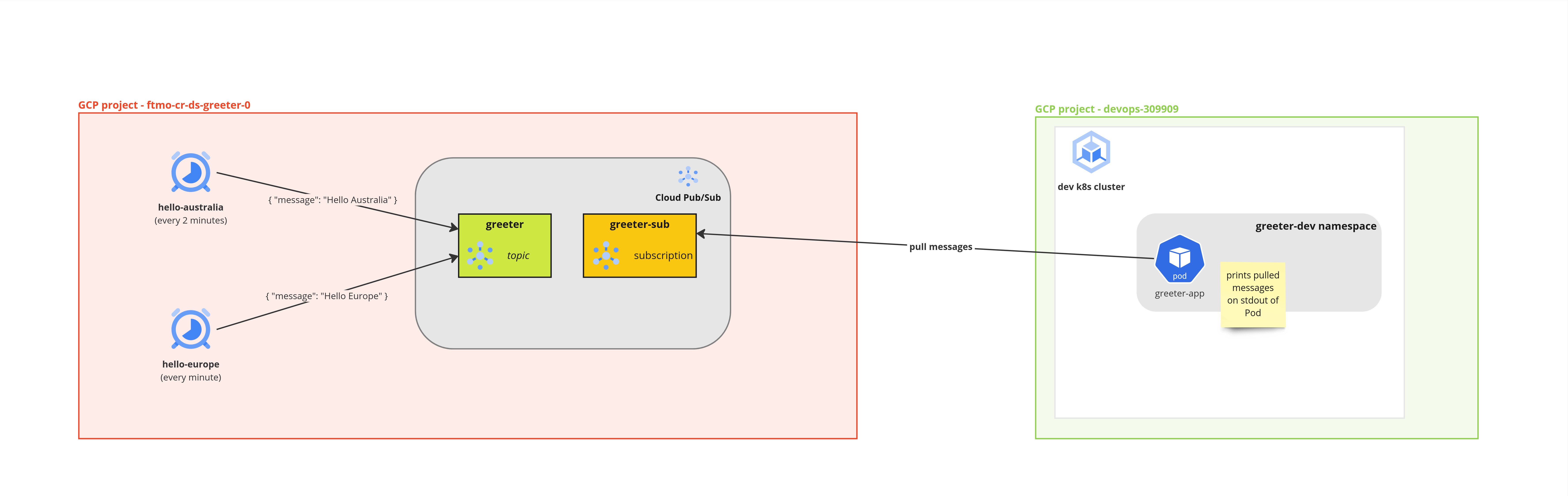
In the lesson we will work with Greeter app, deployed in dev Kubernetes cluster. It's simple Go app, that has /health endpoints and it's subscribed to Pub/Sub, printing out messages to stdout.
This is how the infrastructure for Greeter app looks like:
Prerequisites
Before starting the lesson, we need to have:
- Kubernetes application, which has logic to consume from Pub/Sub topic. You can check this guide on how to integrate Pub/Sub to your application.
- Member of Owners and Editors access group in GCP project. You set this up in svc.yaml file for Landing Zone project.
Publish messages from Cloud Scheduler to Pub/Sub
We start with creating 2 Cloud Scheduler jobs - hello-australia and hello-europe.
For step-by-step guide, follow this tutorial. You don't have to create projects or enabled APIs. This is already done.
Instead of using topic name cron-topic, we used greeter topic, with default subscription greeter-sub.
Here is how it looks like after creating both jobs:

So now, we have 2 Cloud Scheduler jobs, sending messages to Pub/Sub topic greeter, but nothing is yet subscribed to greeter-sub subscription. This is where we connect our app.
Authenticate Kubernetes app to Pub/Sub subscription
IAM Introduction
Before setting up the authentication, it's important you understand basics of Identity and Access Management (IAM) in GCP. Full overview can be found in official docs. We will focus on basic here.
In IAM, you manage access control by defining who (identity) has what access (role) for which resource. - who = Google accounts / groups (humans), Service Accounts (machines), Kubernetes namespace, Kubernetes Service account... - what access = Read-only? Write? Admin? - which resource = Pub/Sub topic, Pub/Sub subscription, Cloud Storage bucket, GCP Project, BigQuery Data Set...
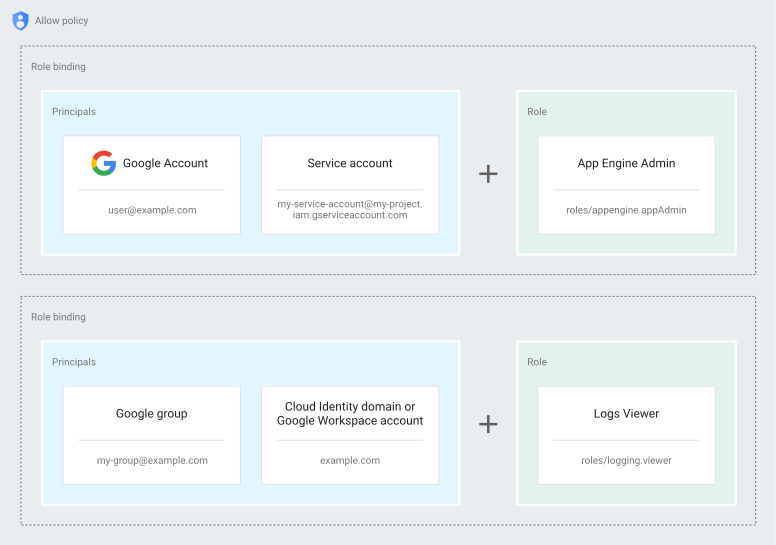
These 3 dimensions (who, what, which) are combined in IAM policy. You will interact with allow IAM policies, meaning that only identities in policy have access to resource.
Picture from documentation illustrates the IAM Allow policy where identity user@example.com has role App Engine Admin.
If policy is attached to GCP project, identity is App Engine Admin in attached project.
Subscribe Kubernetes app to Pub/Sub subscription
Our task is now to allow pods in Kubernetes namespace (who) to subscribe(what access) on Pub/Sub subscription (which resource).
Google offers many predefined roles, which gives you least-amount of privileges needed for common tasks. We will use role Pub/Sub Subscriber for our Kubernetes app, so it can read messages from greeter-sub Pub/Sub subscription.
We don't create any API keys for our application to authenticate. Thanks to having our application in Google Cloud Kubernetes Engine, we leverage Workload Identity feature. This allows us to use Kubernetes Namespace as identity in IAM Allow policy.
Let's set it up, this time with Cloud Shell. We open Cloud Shell in our project and execute following command:
gcloud pubsub subscriptions add-iam-policy-binding greeter-sub --member=principalSet://iam.googleapis.com/projects/412451610001/locations/global/workloadIdentityPools/devops-309909.svc.id.goog/namespace/greeter-dev --role=roles/pubsub.subscriber
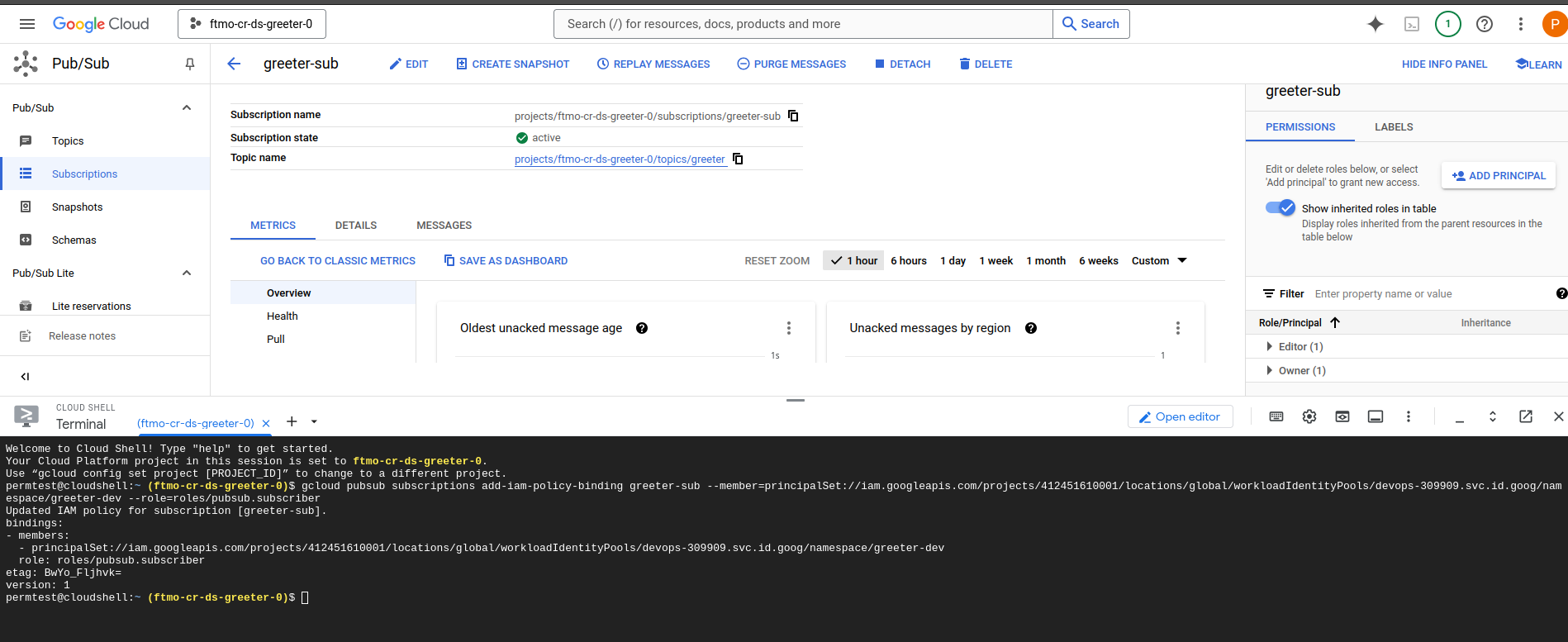
Let's break up the command to see what happened:
- gcloud pubsub subscriptions add-iam-policy-binding greeter-sub - adds new IAM policy binding to greeter-sub subscription
- --member=principalSet://iam.googleapis.com/projects/412451610001/locations/global/workloadIdentityPools/devops-309909.svc.id.goog/namespace/greeter-dev
- this is a special format for Workload Identity for GKE. It identified all pods in greeter-dev namespace.
- 412451610001 is project number with Kubernetes cluster, devops-309909 is GCP project ID with Kubernetes cluster, greeter-dev is our namespace with app.
- --role=roles/pubsub.subscriber - this is predefined role, giving only read access to Pub/Sub subscription.
Now, when we restart our Kubernetes app and check the logs, we can see messages from Pub/Sub being printed out:
nagyluka@lenovo-804:~ (⎈|ftmo-gke-dev:greeter-dev)  $ kubectl logs greeter-app-f66d6568c-drkmm
2024/12/11 10:50:45 Starting server on :5000
Got message: "{\"message\": \"Hello Europe\"}"
Got message: "{\"message\": \"Hello Europe\"}"
Got message: "{\"message\": \"Hello Australia\"}"
Got message: "{\"message\": \"Hello Europe\"}"
Summary
And that's it! We created managed cron jobs with Cloud Scheduler, sending us JSON messages at regular intervals to Pub/Sub topic. We authenticated our Kubernetes pods to read messages from Pub/Sub, and we didn't need any API keys or secrets in our code to finish the authentication.
Next lesson
In next lesson, we will look how to avoid clicking in Cloud Console to create infrastructure and instead, introduce you to Infrastructure as Code (IaC) with Terraform.
This will prove helpful when you need to replicate the infrastructure in more environments consistently or introduce CI to your infrastructure changes, same way as you do for your application code.