[[TOC]]
Private Terraform Registry (HCP Terraform)
We have a free tier of HCP Terraform to store our private Terraform providers. At the time of writing, we don't use the HCP Terraform for anything else
Access
Organization owner
User account devops@ftmo.com is owner of the organization - it doesn't have SSO enabled.
Credentials together with TOTP are stored in DevOps Bitwarden.
Only this account has access to billing and full feature set. SSO users don't see organization wide settings.
SSO
For authentication, we use SAML SSO, connected to Jumpcloud. We are on free tier, meaning we don't have granular permissions available and everyone has owner rights.
Therefore, only DevOps team members have access to the HCP Terraform. Members of Jumpcloud User Group FTMO Terraform Cloud Admins have the Terraform Cloud Application enabled.
Built-in Jumpcloud SSO Application Terraform Cloud is used to set up SSO - https://console.jumpcloud.com/#/applications/66f2af2c62a784d50cd5de26/details.
App support Just-in-Time account provisioning, so you will be prompted to create HCP account and password. After that you will be redirected to Jumpcloud login page, when accessing FTMO organization resources.
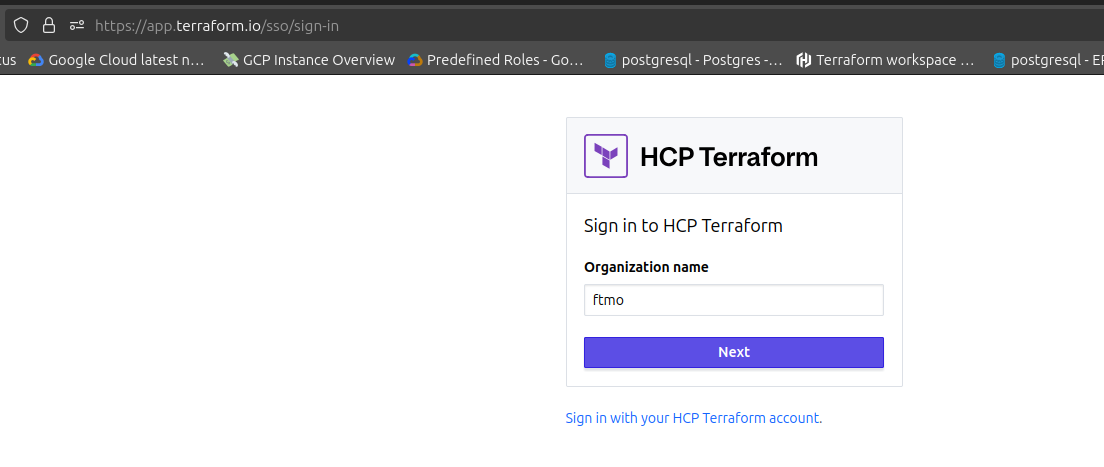
For login to HCP Terraform visit https://app.terraform.io and select Sign in with Terraform SSO.
Organization name is ftmo.
Uploading new provider to private registry
There is no UI for uploading registry and step-by-step guide is provided here -> https://developer.hashicorp.com/terraform/cloud-docs/registry/publish-providers
First successful example is our forked terraform-provider-jumpcloud. I saved the JSON payloads in publish/ folder.
Few notes:
- when you are uploading, make sure you close HCP Terraform browser tab. It might break the process. When I was trying to upload SHA256SUMS (https://developer.hashicorp.com/terraform/cloud-docs/registry/publish-providers#create-a-version) I was getting HTTP 400, because I opened it in web UI. I got this confirmed from Hashicorp support.
- I had trouble signing the release with passphrase-protected GPG key. I had to use non-protected key, because on terraform init I got keys mismatch.
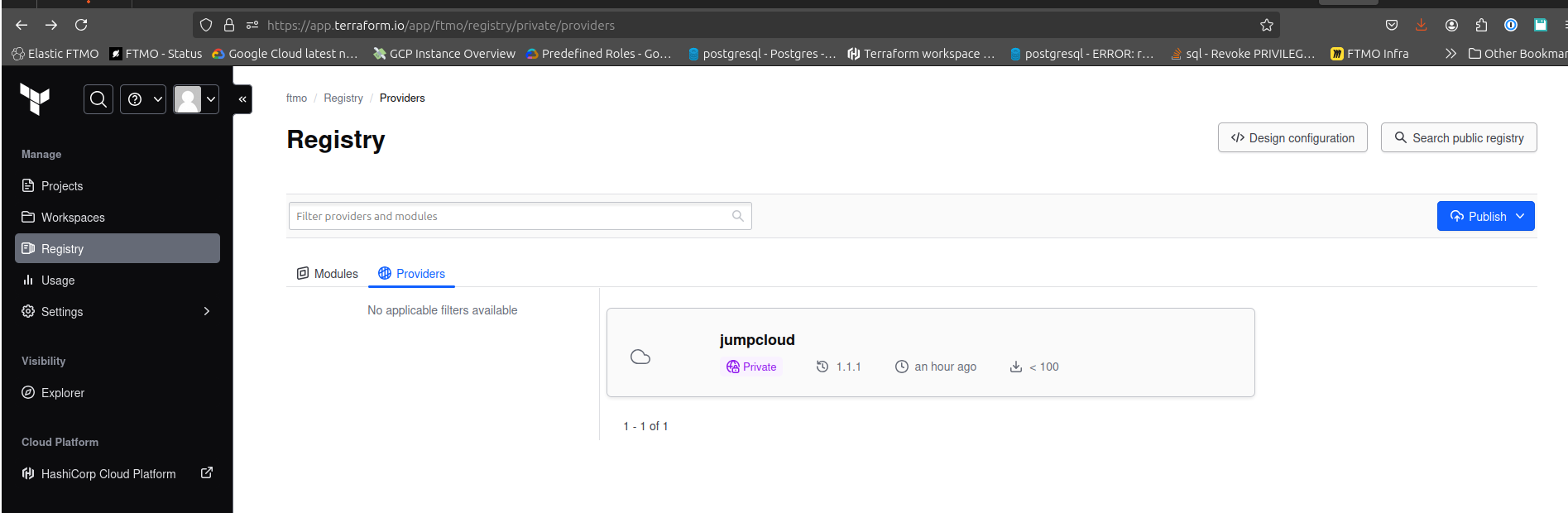
You can find all providers on https://app.terraform.io/app/ftmo/registry/private/providers
Using private provider
You can use terraform login and your SSO credentials to authenticate. It will prompt you to create API token. After pasting it, it will be stored in ~/.terraform.d/credentials.tfrc.json
The usage in Terraform code is quite easy, you just specify the source in required_providers block:
terraform {
  required_providers {
    jumpcloud = {
      source = "app.terraform.io/ftmo/jumpcloud"
      version = "~> 1.0"
    }
  }
}

provider "jumpcloud" {
  # Configuration options
}
terraform init it should look like this:
Initializing the backend...

Initializing provider plugins...
- Finding app.terraform.io/ftmo/jumpcloud versions matching "~> 1.0"...
- Installing app.terraform.io/ftmo/jumpcloud v1.1.1...
- Installed app.terraform.io/ftmo/jumpcloud v1.1.1 (self-signed, key ID 4D6081E99715A327)

Partner and community providers are signed by their developers.
If you'd like to know more about provider signing, you can read about it here:
https://www.terraform.io/docs/cli/plugins/signing.html

Terraform has created a lock file .terraform.lock.hcl to record the provider
selections it made above. Include this file in your version control repository
so that Terraform can guarantee to make the same selections by default when
you run "terraform init" in the future.

Terraform has been successfully initialized!