[[TOC]]
Secret Manager - Developer's guide
Introduction
Secret Manager is a centralized service for managing your application's secrets.
It allows you to securely fetch secret values directly in your application (via API), GitLab pipelines (via native integration), or through the command line using gcloud.
It offers fine-grained access control based on user identity and logs all operations on secret values.
DevOps team provides tooling for creating Secrets and setting up permissions to them. Team leaders decide who has access to secrets, owned by their team. Secret Values are stored inside Secrets and populated by development teams, when they own such a value.
For more information, see RFC 3, which describes this centralized model in more detail.
Usage
We did a demo on DevOps Weekly (2024-07-02) - you can watch the recording here (in Czech/Slovak) -
Demo shows: - Create a secret in Secret Manager. - Adding access rights to new secret. - Accessing secret values via gcloud / web console. - Using Secret Manager in GitLab CI.
Creating a Secret
Secrets are stored in the terragrunt-workload repository. Each team maintains its own file for secret names.
Secret names follow this format: <team>--<env>--<app>. The team and env are predefined, while app can be chosen by developers. Each field is separated by --.
Example of team-owned secrets definition file (deployments/gcp/secrets-creator/prod/secrets/trader.hcl):
locals {
  _common_labels = {
    tenant = "trader"
  }

  secrets = {
    trader--prod--example-secret = { # Name of the secret
      labels = merge(local._common_labels, {}) # Labels for billing identification; other labels possible
      k8s = {} # Not supported yet - namespace and k8s cluster where the secret is replicated
    }
  }
}
To create a new secret, create MR to the file. It needs approval from team leader and DevOps team to be merged.
Setting up permissions to secret
Access to secrets is granted based on the prefix used in the name, controlled by two repositories:
- Human Access - user-access repository
- Machine Access - terragrunt-platform repository
Each identity (machine service account email / human user email), can have 4 different roles on prefix: 1. accessor - read-only access to secret values 2. adder - read secret values + add new values (can't delete / change old values) 3. editor - read / write access to secret values (can delete / change values) 4. owner - full access over secret object (reserved for platform team)
Human access
You will most likely interact with this type of access (adding / removing team members from your team's secrets)
locals {
  # other teams secret manager resources
  #...
  trader_sm_access = {
    "petrak@ftmo.com" = {
      accessor = []
      adder = []
      editor   = ["trader--"] # Dan Petrak has R/W access to all secret values in Secrets starting with `trader--` prefix.
      owner    = []
    }
  }
  # ...
}
Secret Manager in GitLab CI
- Use as alternative to GitLab CI/CD variables.
- Fetching a secret value depends on who triggered the pipeline, not just on protected branches
- Specify the version of a secret for a graceful update, allowing you to store the latest value without deploying it immediately.
Use keys secrets and id_token to fetch secrets in your existing jobs. You don't have to create new jobs.
Example, extending the deploy job:
Deploy to prod:
  id_tokens: # define how to get short-term token for Secret Manager authentication
    GCP_ID_TOKEN:
      # variables are already filled by DevOps team in your project
      aud: https://iam.googleapis.com/projects/${GCP_PROJECT_NUMBER}/locations/global/workloadIdentityPools/${GCP_WORKLOAD_IDENTITY_FEDERATION_POOL_ID}/providers/${GCP_WORKLOAD_IDENTITY_FEDERATION_PROVIDER_ID}
  extends: deploy
  script:
    - echo "Deploying to prod with secrets $TF_VAR_pd_token and $TF_VAR_grafana_terraform_sa_token"
    - helm upgrade -install ...
  secrets:
    TF_VAR_pd_token: # Name of env. variable where secret value will be stored
      gcp_secret_manager:
        name: do--prod--pagerduty-token # name of secret in Secret Manager
        version: 1 # version of secret value - when ommitted, latest version will be used
      file: false # store secret value directly as string in variable. Otherwise, it's filepath
      token: $GCP_ID_TOKEN
    TF_VAR_grafana_terraform_sa_token:
      gcp_secret_manager:
        name: do--prod-grafana-rw-token
        version: 1
      file: false
      token: $GCP_ID_TOKEN
Upstream documentation - https://docs.gitlab.com/ee/ci/secrets/gcp_secret_manager.html#configure-gitlab-cicd-to-use-gcp-secret-manager-secrets
Secret Manager in local development (.env / .envrc / interactive CLI)
- you don't have to store unencrypted sensitive values in your local files.
- use
gcloudto fetch the secret values - can be used to populate environment variables in .envrc
Requires gcloud command set up (if you use kubernetes on your laptop, you most likely have it done already).
In case you don't have gcloud set up yet, follow these guides:
- install gcloud - https://cloud.google.com/sdk/docs/install
- authorize your Google account - https://cloud.google.com/sdk/docs/authorizing#auth-login
Example of .envrc file:
function fetch_secret() {
    gcloud --project=platform-secret-manager-prod secrets versions access "$@"
}

export TF_VAR_pd_token=$(fetch_secret latest --secret do--prod--pagerduty-token)
export TF_VAR_grafana_terraform_sa_token=$(fetch_secret latest --secret do--prod-grafana-rw-token)
platform-secret-manager-prod project.
This example uses the latest version of the specified secrets.
For more details, refer to the gcloud secrets versions access --help.
Secret Manager in application
For applications running on VMs, we recommend using Google's native libraries for your language.
For applications running in Kubernetes, there are 2 ways:
- using native library (same as on VM)
- [not implemented yet] using ExternalSecret, provided by External Secrets Operator.
Access is managed in terragrunt-platform repository. The structure for service account and is defined in Setting up permissions to secret
The structure for Kubernetes is slightly different - instead of email, <namespace>/<kubernetes_service_account> is used. The pair has to be unique across clusters.
Example of both GCP service account and Kubernetes account access:
  gcp_service_accounts = {
    "tf-do-gcp-prod-sa@ftmo-tf-states-prod.iam.gserviceaccount.com" = { # Google Service account - owner of all secrets with the prefixes
      owner = ["do-", "trader-", "idp-", "bo-", "ck-", "tbi-", "qa-", "wp-", "trading-", "computing-"]
    }
  }
  k8s_service_accounts = {
    "go-example/go-example-dev" = { # K8S application in namespace go-example running under go-example-dev Service account
      accessor = ["do--dev--go-example-access-token"]
    }
  }
Secret Manager with Docker / Podman
When you develop application locally from container, and you use native libraries to access Secret Manager, you need to pass your Google credentials to the container.
For this, gcloud offer you Application Default Credentials. It will create JSON file on your laptop in well-known path, that you can mount to container.
- Linux / Mac: $HOME/.config/gcloud/application_default_credentials.json
- Windows: %APPDATA%\gcloud\application_default_credentials.json
After mounting the JSON to container, specify the path in GOOGLE_APPLICATION_CREDENTIALS variable, so that library can pick it up.
See https://cloud.google.com/docs/authentication/application-default-credentials for details
Full example:
gcloud auth application-default login

docker run -v $HOME/.config/gcloud/application_default_credentials.json:/run/google-credentials.json -e GOOGLE_APPLICATION_CREDENTIALS=/run/google-credentials.json my-app:latest
FAQ
I don't have access to Secret Manager / I can't see Google project with secrets in web browser
Make sure you select correct project in Google Cloud Console. See screenshot how to select correct project.
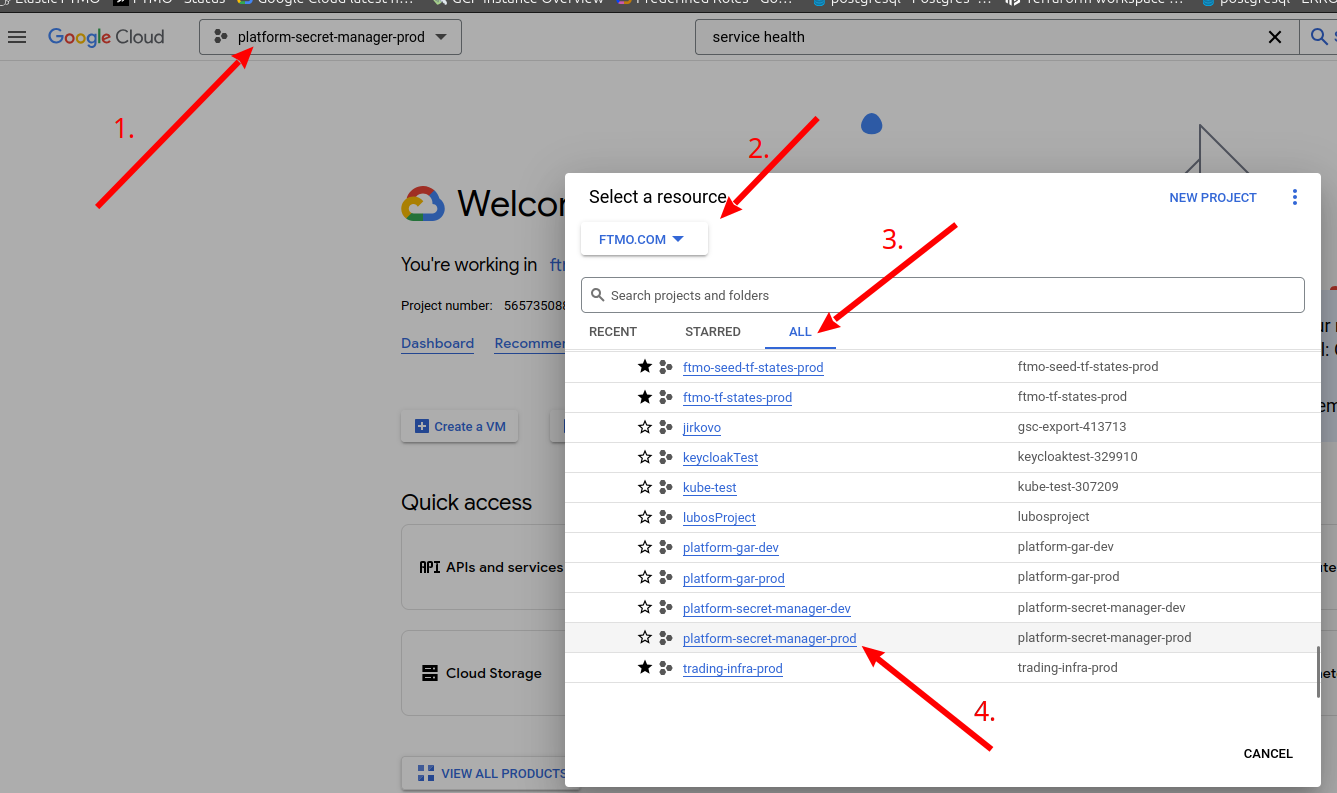
After that, you can type Secret Manager in search bar to find the service.